Which kind of GoPro remote do you have?
A GoPro remote is one of three things: a phone app such as GoPro Quik or Cam Remote, GoPro's Bluetooth remote called The Remote, or the discontinued Smart Remote and Wi-Fi Remote. They do not all connect the same way, so the fix depends on which one you are holding.
- A phone app, such as GoPro Quik or Cam Remote. It talks to the camera over Bluetooth and switches to the camera's Wi-Fi for live preview and file transfers.
- The Remote, GoPro's small waterproof Bluetooth remote. GoPro lists it for HERO8 Black through HERO13 Black, HERO11 Black Mini and MAX, plus newer cameras such as MAX2. It does not work with HERO5, HERO6 or HERO7.
- The Smart Remote and the older Wi-Fi Remote, which connect over Wi-Fi instead of Bluetooth. Both are discontinued. GoPro lists the Smart Remote for HERO5 Black, HERO5 Session, HERO6 Black, HERO7 Black, HERO8 Black, Fusion and MAX, and no later camera.
Bluetooth control on GoPro cameras starts with the HERO5 generation. A HERO4 or older camera will not work with a Bluetooth remote or with Cam Remote.
What should you check before troubleshooting a GoPro remote?
Run five checks on a GoPro remote setup before any reset: a charged camera, the phone or remote within a meter or two, no other app such as GoPro Quik holding the connection, Bluetooth permission granted to the app, and a camera from HERO5 or later. A GoPro camera holds one app connection at a time.
- Charge the camera. A camera close to empty can drop its wireless connection.
- Turn the camera on and keep it within a meter or two of the phone or remote while pairing.
- Close every other app that can control the camera, including GoPro Quik, and turn off Bluetooth on any other phone that has paired with it before. A camera holds one app connection at a time.
- Turn Bluetooth on at the phone, and check the app is allowed to use it: on iPhone, Settings > Privacy & Security > Bluetooth; on Android, the app's Nearby devices permission.
- Check the camera model. Anything older than HERO5 has no Bluetooth control.
Why won't my GoPro remote connect or find the camera?
A GoPro camera that never appears in a scan is almost always out of pairing mode. GoPro cameras only advertise themselves to a new phone or remote while the pairing screen is open, so open the pairing screen (Pair Device or Connect Device, depending on the model) and scan again from the app or remote.
Put the camera in pairing mode
- HERO12 Black and HERO13 Black: swipe down on the rear screen, swipe left, then tap Pair Device.
- HERO9 Black to HERO11 Black: swipe down, swipe left, then tap Connections > Connect Device and pick the app or remote you are pairing.
- HERO7 and HERO8 Black: swipe down, then tap Preferences > Connections > Connect Device.
- HERO5 Black and HERO6 Black: swipe down, then tap Connect > Connect New Device.
- HERO5 Session: the camera has no touchscreen. Press the Menu button until Connection Settings appears and select it with the shutter button, then move to Connect New Device and select that the same way.
With The Remote, start with the remote switched off. Put the camera on its pairing screen (on HERO8 to HERO11, choose Remote from the Connect Device list), then power on The Remote. When Pair New appears on its screen, press its shutter button. If The Remote has paired with another camera before, it shows Connect to instead: press the Mode button until Exit is highlighted and press the shutter, then highlight Pair New and press the shutter again. After the first pairing, The Remote offers to connect to that camera whenever you power it on.
Then scan from the app
Cam Remote scans for 15 seconds. When it finds exactly one camera, it connects to it straight away; with several cameras nearby it lists them and you tap Connect on the one you want. If the scan ends empty, put the camera back on the pairing screen and tap Scan Again. On Android the app shows a reminder about pairing mode when a scan has found nothing after a few seconds.
Once a camera has paired, Cam Remote tries the last camera first the next time it opens. If that camera does not answer within 8 seconds, the app gives up on it and scans for nearby cameras instead.
Why does GoPro pairing fail or keep asking again?
GoPro pairing usually fails for one of two reasons: the phone's Bluetooth pairing prompt was dismissed, or the stored pairing on the camera no longer matches the one on the phone. Accept the system prompt when it appears. When pairing worked once and now fails every time, reset the camera's connections, forget the GoPro on the phone and pair again.
Newer cameras ask the phone to confirm a Bluetooth pairing the first time they connect. The phone shows its own system prompt, and if you dismiss it, the connection fails. On Android, Cam Remote says "Confirm pairing on your phone" while it waits, and reports "Pairing was declined" if the prompt is cancelled.
When pairing worked once and now fails every time, the stored pairing on one side no longer matches the other. Clear both sides and start over:
- On the camera, reset its wireless connections. This removes every paired phone and remote and resets the camera's Wi-Fi to its defaults. Where the option sits depends on the model:
- HERO12 Black and HERO13 Black: swipe down, swipe left, then Preferences > Wireless Connections > Reset Connections > Reset All.
- HERO9 Black to HERO11 Black: these models have no separate connections reset. Use Preferences > Reset > Factory Reset, which also returns every camera setting to its default.
- HERO7 and HERO8 Black: Preferences > Connections > Reset Connections.
- HERO5 Black and HERO6 Black: swipe down, then Connect > Reset Connections > Reset.
- HERO5 Session: press the Menu button to reach Connection Settings, then Reset Connections, and confirm Yes with the shutter button.
- On iPhone, open Settings > Bluetooth, tap the info button next to the GoPro and choose Forget This Device. On Android, open Bluetooth settings, find the GoPro under paired devices and choose Unpair or Forget.
- Restart the camera and the phone.
- Put the camera in pairing mode and pair from the app or remote again.
If you use The Remote, pair it again after the reset, because the reset removes it too.
Why does the GoPro connection drop during use?
A GoPro remote connection usually drops because something blocks the Bluetooth signal between camera and phone. Bluetooth is a short-range radio, and water, metal and the human body all absorb it. A camera on a helmet with the phone in a back pocket is a common way to lose the link.
Keep the phone on the same side of your body as the camera, or closer to it. A low battery and an out-of-date camera firmware can also cause drops, so check both. If the link drops, reopen Cam Remote or scan again; it tries the last camera first.
Why do controls work but live preview or media fail?
On a GoPro, shutter, mode changes and settings run over Bluetooth alone. Live preview and the media browser need the camera's Wi-Fi as well, so Cam Remote turns on the camera's Wi-Fi through Bluetooth and then joins that network from your phone. When controls work and preview does not, the Wi-Fi step is the one failing.
- iPhone: when iOS asks to join the camera's Wi-Fi network, tap Join. Allow Local Network access for the app (Settings > Privacy & Security > Local Network), because preview and downloads come from the camera over the local network. Location access lets the app read the Wi-Fi network name so it can rejoin the camera later without asking.
- Android: Android shows its own network picker. Choose the camera's network there; cancelling the picker stops the join.
- Both: while your phone is on the camera's Wi-Fi it has no internet through that network. That is expected, and it returns to your normal Wi-Fi afterwards.
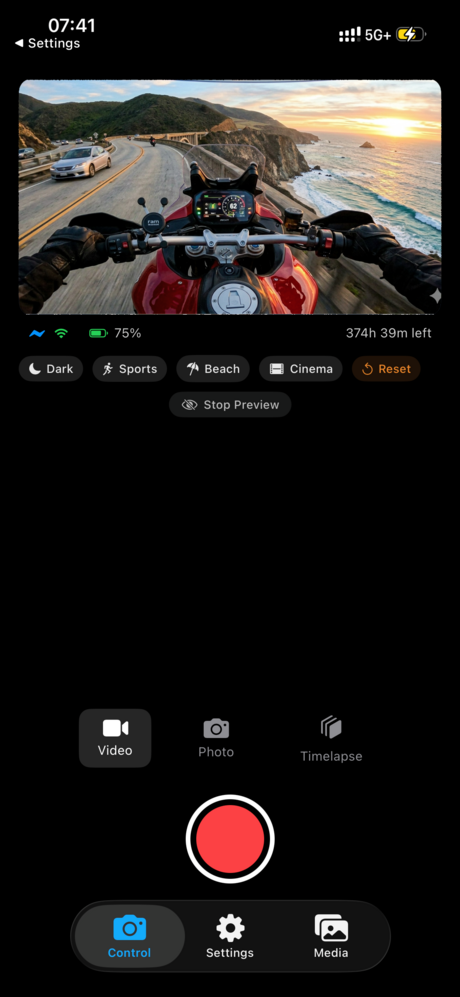
If the Media tab says Camera Wi-Fi Needed, tap Try Again with the camera close by. The app retries the join once on its own, because the camera's Wi-Fi can take a few seconds to start. If it still fails, reset the camera's connections (above) and pair again, so the app reads the camera's current Wi-Fi details over Bluetooth.
Why does the GoPro battery drain fast with a remote?
Wireless control costs battery on a GoPro camera, and Wi-Fi costs far more than Bluetooth. Cam Remote keeps the camera on Bluetooth for control and only turns on Wi-Fi when you open live preview or the media browser, so the biggest saving is closing preview once the shot is framed.
The app's status bar shows the camera's battery level, read over Bluetooth, so you can watch it without picking up the camera.
- Turn off the camera's wireless connections when you are recording without a phone or remote. A paired camera is not fully silent when it sleeps: GoPro's developer documentation describes waking a sleeping camera over Bluetooth.
- Cold weather shortens any lithium battery. Keep spares warm in an inside pocket.
- The Remote runs on its own rechargeable battery, which GoPro rates at more than 60 hours. It charges over the USB-C port under the flap: a red light shows while it charges and goes out when it is full. If it will not wake, charge it fully, then pair it again.
Our GoPro battery life guide covers screen, GPS and settings changes that save more power.
How do you update GoPro firmware for a remote?
An out-of-date GoPro camera firmware is a frequent reason a remote will not pair, and GoPro's own manual for The Remote says the camera may need a software update before the remote works with it. Cam Remote does not update firmware. GoPro offers two ways to update a camera:
- GoPro Quik app: connect the camera to Quik, which offers an update when one is available.
- Manual update: pick your camera at gopro.com/update and follow the manual steps for your computer. You need a computer and a microSD card reader, because the update goes onto the camera's SD card.
To see which firmware your camera runs, open Cam Remote's Settings tab after the camera has joined Wi-Fi once. The Camera section shows the firmware version the camera reports.
The Remote updates through the camera. Download its update from GoPro's update page for The Remote, copy it to the camera's SD card, put the card back and power on the camera, then power on The Remote. The update starts on its own, and The Remote tells you when it is done. This matters for HERO13 Black: GoPro confirmed that The Remote on firmware 1.20 or older will not stay paired with it, and version 2.0.1 fixes that.
Why will a GoPro setting not apply from the remote?
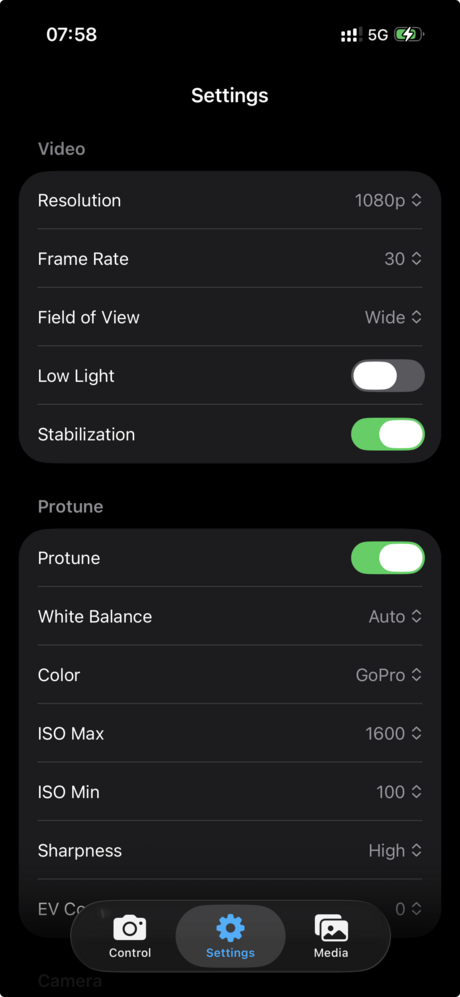
GoPro models support different resolutions, frame rates and features, and the camera refuses a setting it does not have. Choose a different resolution and frame rate pair, or check your model's manual for what it supports. Updating the camera firmware can add options on some models.
Where do you get warranty and official GoPro support?
Cam Remote is made by an independent developer and is not affiliated with GoPro, Inc. For warranty claims, a faulty camera or hardware remote, user manuals and firmware questions, go to GoPro directly at gopro.com/help. GoPro also runs a community forum at community.gopro.com.
For help with Cam Remote, see our support page or write to the address there.
Related Guides
- GoPro Bluetooth vs WiFi: when each connection is used
- Every way to control a GoPro remotely
- GoPro battery life tips
- Transferring GoPro files to an iPhone
- GoPro: The Remote, how to use it
- GoPro: camera software updates
Key Takeaways
- GoPro cameras only appear to a new phone or remote while the pairing screen (Pair Device or Connect Device) is open.
- When a pairing that once worked starts failing, reset the camera's connections, forget the GoPro in the phone's Bluetooth settings, and pair again.
- Shutter, modes and settings run over Bluetooth, while live preview and media need the camera's Wi-Fi, so a preview failure points at the Wi-Fi join.
- Bluetooth control starts with the HERO5 generation, so a HERO4 or older camera will not work with a Bluetooth remote or with Cam Remote.
- The Remote on firmware 1.20 or older will not stay paired with a HERO13 Black, and version 2.0.1 fixes that.
- Cam Remote is a third-party app, not affiliated with GoPro, Inc., so warranty and hardware questions go to gopro.com/help.
Frequently Asked Questions
A remote that tells you what it is doing
Bluetooth for control, Wi-Fi only for preview and media, and plain status messages when a connection fails.
 iPhone app coming soon
Sources
- GoPro: Camera software updates
- GoPro: GoPro Support
- GoPro: The Remote user manual (FCC filing)
- GoPro: The Remote: How To Use
- GoPro: How To Reset Camera Wi-Fi And Connections
- GoPro: How To Pair Your Camera With Your Smart Remote
- GoPro: HERO13 Black: Pairing Issue With The Remote
- GoPro: How to update your Remote
- GoPro: Open GoPro API documentation